Tour of the dashboard
Find where to set up everything for your server: music, language, DJ, queue, announcements and community features. Use /dashboard to open it.
Everything you set up for a server lives in the dashboard. Discord is for listening.
Open the dashboard
- Use
/dashboardor/settingsin your server. Both open the dashboard of that server. - Or open the dashboard on the website and pick your server.
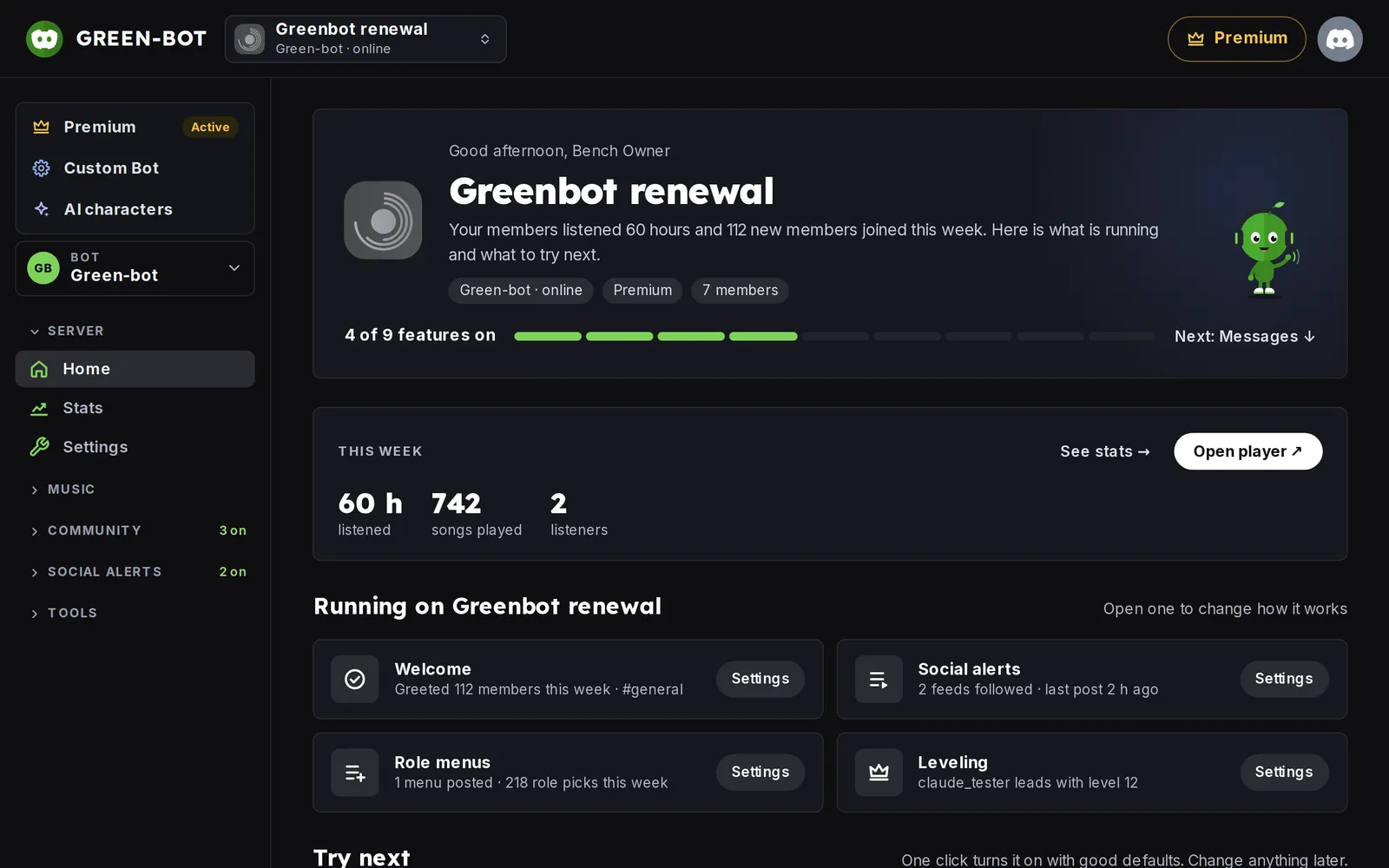 Server home
You need the Manage Server permission to change settings. If the page asks for it, see The dashboard won't load.
The menu
The menu on the left groups the pages of a server: Home, Server stats, Settings, Music settings, Welcome messages, Social notifications, Leveling, Self-assign roles, Messages, Custom Bot, AI characters, Premium, Tickets, Custom commands, Timers, Automation, Voice rooms and Giveaways.
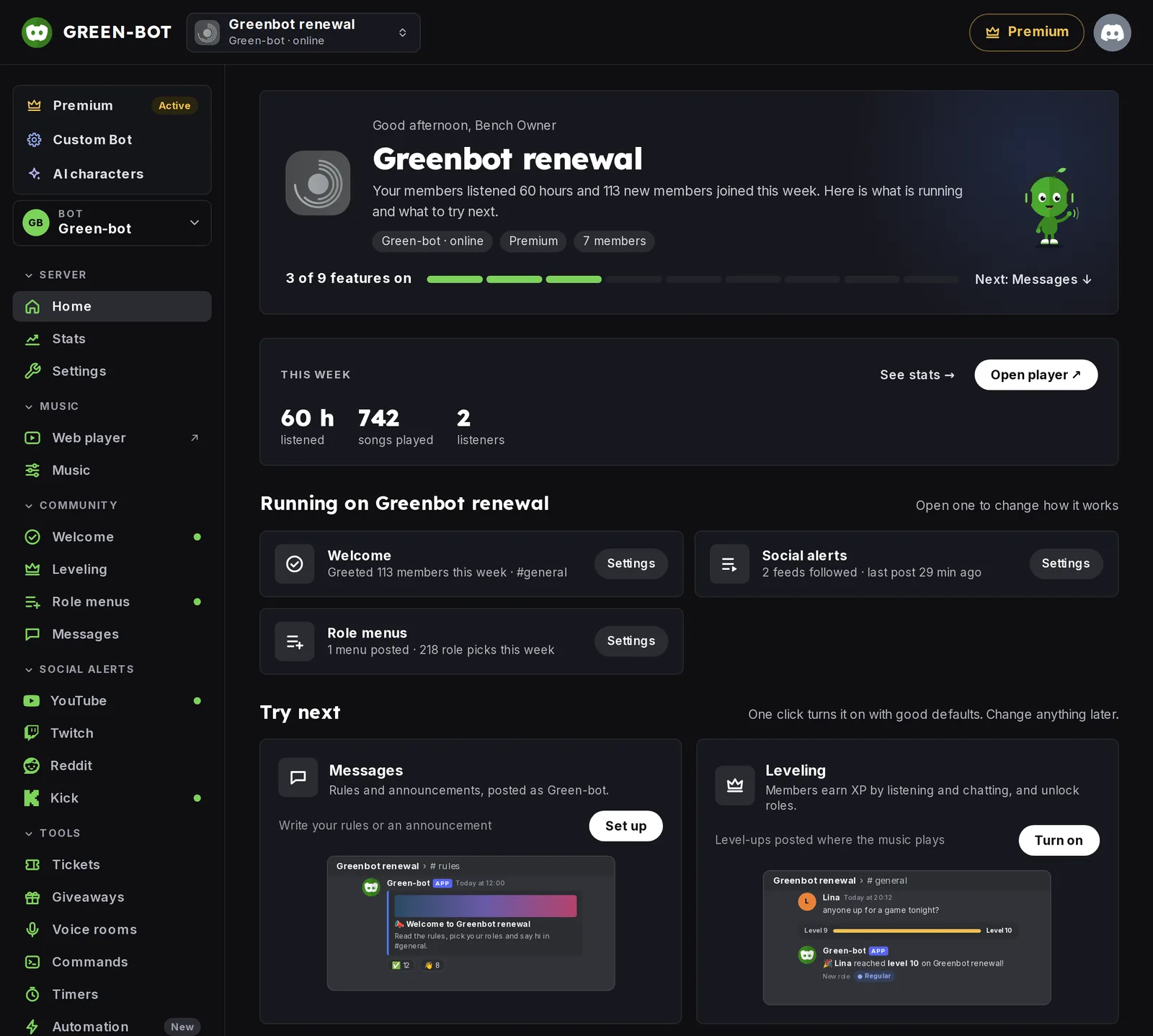 Dashboard menu
Some pages show only when the feature is available for the bot you picked.
Language
- Open Settings.
- Pick the Language of Green-bot's messages and of the dashboard on this server.
- Optionally turn on Use each member's Discord language, so members see replies in their own language when it is available.
The language is saved for each bot. Set it on every Green-bot you use.
Playback
Open Music settings, then Playback:
- Allowed voice channels: where the bot can join. Empty means every voice channel.
- Announce each new song and Announce channel: post a message when a song starts, and where.
- Show buttons on messages: show the control buttons.
- Default volume: the volume used when the bot joins.
- 24/7 mode: keep the bot in the channel. See Keep Green-bot in the channel 24/7.
Queue
Open Music settings, then Queue:
- Vote to skip and Vote to go back: let listeners vote. See Skip by vote.
- Keep playing when the queue ends: start autoplay by itself.
- Auto-shuffle: shuffle a playlist when it is added.
- Max songs per member and Max queue size: the queue settings.
Some of these settings come with Premium. A tag next to the setting tells you.
DJ
Open Music settings, then DJ. See DJ role and who can control the music.
Community
Welcome messages, Leveling, Tickets, Voice rooms, Giveaways and the other pages are in the same menu. See the Community articles of this guide.
Reset
Settings has a reset for all the settings of the server.
Still stuck? Ask on the support server.