Add Green-bot to your server
Invite Green-bot to your Discord server in two clicks, pick the right bot, and add another Green-bot to play in more than one channel.
Adding Green-bot takes two clicks. You need the Manage Server permission on the server.
Add the bot
- Open the Green-bot website and click the button to add the bot.
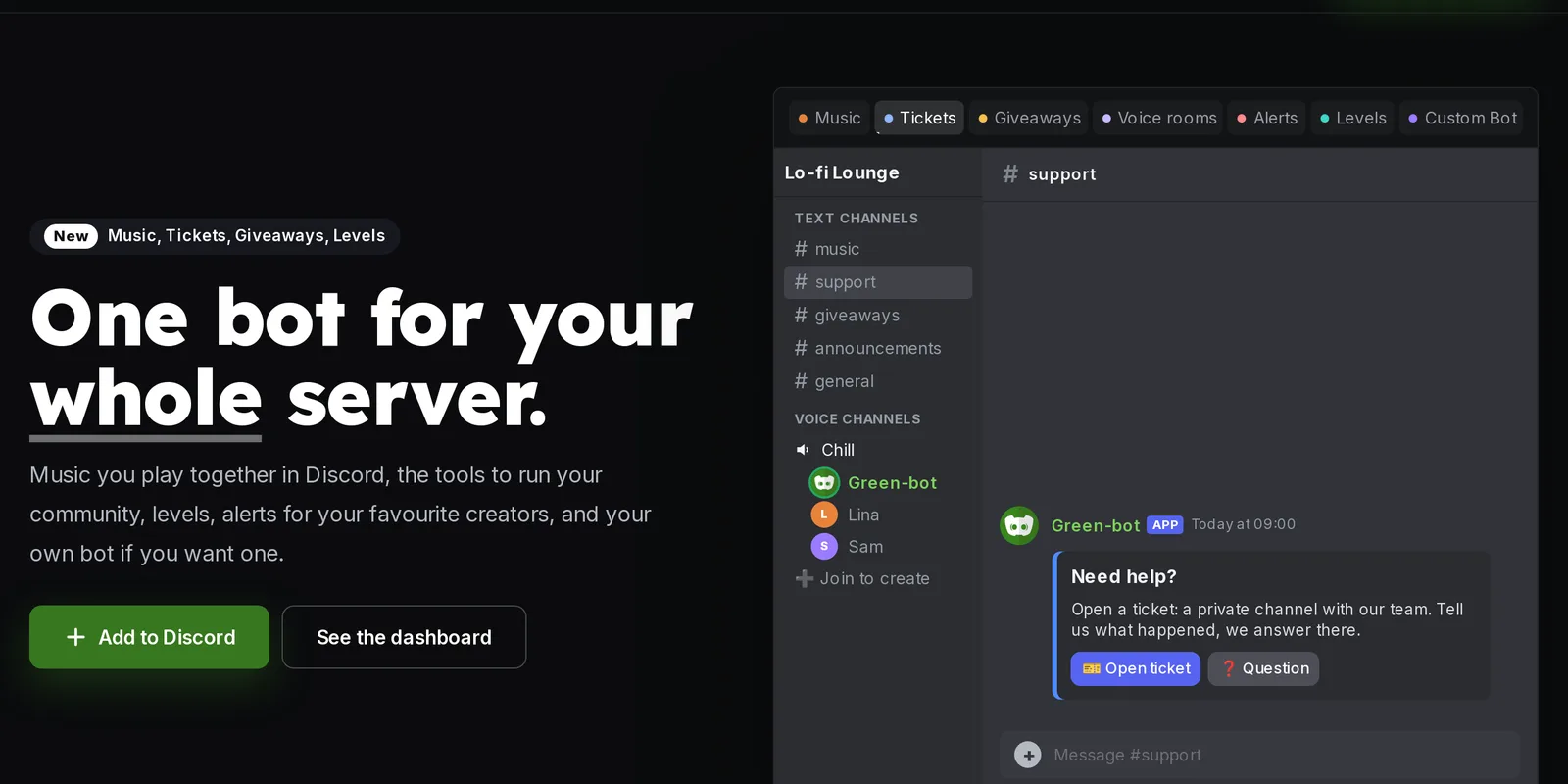 Add Green-bot button
- Pick your server in Discord's authorization page.
- Click Authorize.
The animated steps are in Why isn't the bot on my server?. You can also use /invite in Discord to get the link.
Choose the right bot
There are several Green-bots. Each one plays in one voice channel at a time. You can use the bot switch in the dashboard to see which ones are in your server.
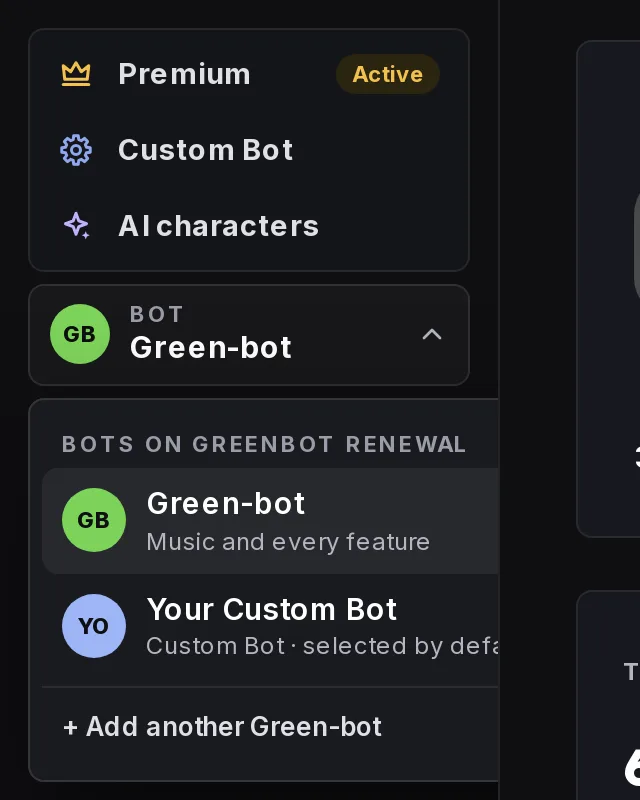 List of Green-bots
Add another Green-bot
If Green-bot already plays in one channel and you want music in a second channel, add another Green-bot to the server.
- Open your server in the dashboard.
- Open the bot switch and click + Add another Green-bot. A window lists the other Green-bots.
- Pick one and authorize it in Discord.
Check the permissions
Green-bot needs to see your voice channels, connect and speak. See Green-bot won't join my voice channel.
Still stuck? Ask on the support server.