Dashboard access and modules: delegated roles, on and off
Let some roles open the dashboard, learn what they can and cannot change, turn modules on or off, rename the bot and reset the settings.
Server admins can share the dashboard with other roles, and turn each module on or off.
Who can open the dashboard
Members with the Manage Server permission always can. You can give access to roles.
Give access to a role
- Use
/dashboardand open Settings. - Find Dashboard access.
- Click Add a role and pick the role.
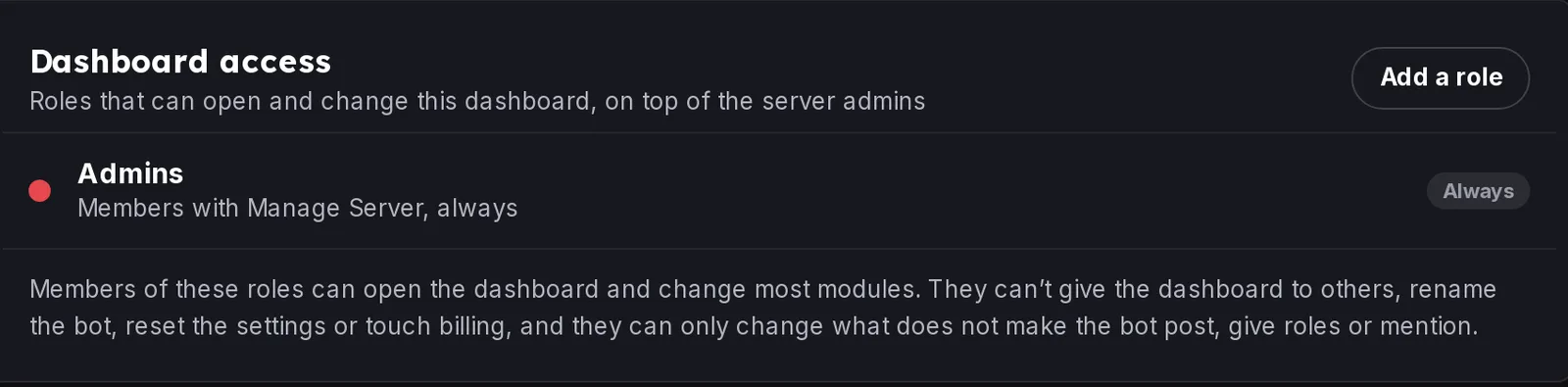 Dashboard access
- Use Edit on a role to change or remove it.
Members of these roles can open the dashboard and change most modules. They cannot give the dashboard to others, rename the bot, reset the settings or touch billing. They can only change what does not make the bot post, give roles or mention.
Turn a module on or off
Modules such as Welcome messages, Leveling, Tickets, Giveaways and Voice rooms have an Enabled or Disabled switch at the top of their page. A module that is off does nothing, but your settings are kept.
Other settings
Settings also has the Language, Use each member's Discord language, the Time zone used by timers and stats images and the Bot nickname on this server. See Tour of the dashboard.
Reset all settings
The Danger zone has Reset all settings. It asks you to confirm and says what stays. Welcome, roles, leveling, server tools and music settings go back to their defaults, for every bot. The language goes back to English and the dashboard access list is emptied.
Members without access
A member without access sees a refusal, or a read-only view of the stats and levels. See The dashboard won't load.
Still stuck? Ask on the support server.