Temporary voice rooms
Members join one voice channel and get their own room, which disappears when everyone leaves. Set it up in the dashboard.
Updated Oct 30, 2026 · 1 min readCommands/dashboard/room
Members join one voice channel and get their own voice room. The room disappears when everyone has left.
Set it up
- Use
/dashboardand pick your server. - Open Voice rooms.
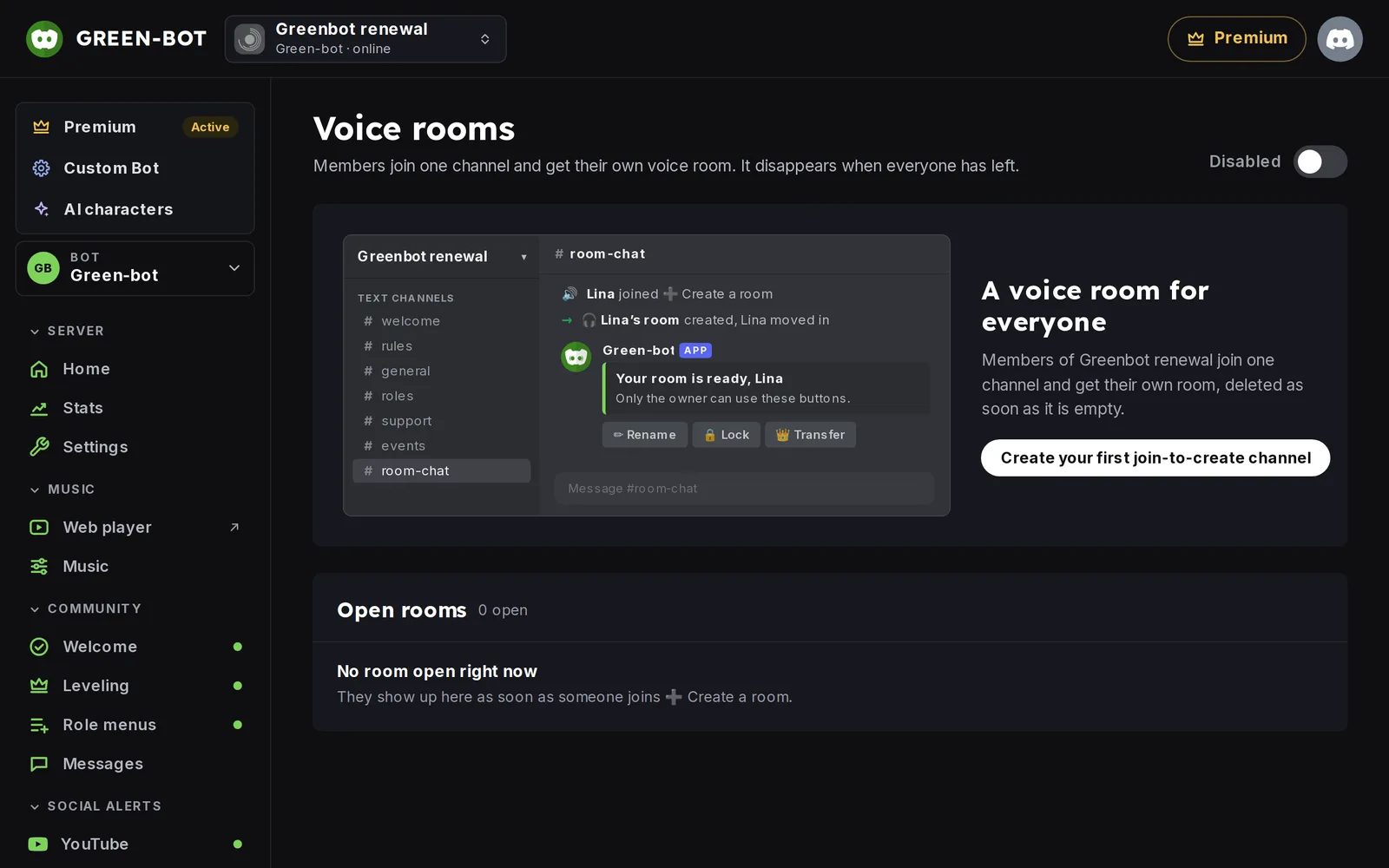 Voice rooms page
- Add a join-to-create channel and pick the voice channel members will join.
- Save.
You can set up more than one kind of room. Each has its own category, name, limit and quality.
Use a room
- A member joins the join-to-create channel.
- Green-bot creates a new voice room and moves the member into it.
- When everyone has left, the room is deleted.
Control your room
The owner of a room (or a member with the Manage Channels permission) can control the room they are in with /room:
- rename: give the room a new name.
- limit: set how many members can join.
- lock and unlock: stop or allow other members from joining.
- hide and unhide: show the room only to the members inside, or to everyone.
- kick: remove a member from the room.
- transfer: give the room to another member.
- claim: take the room when its owner has left.
Only you see the answers of /room.
For names, limits and permissions, see Voice rooms in depth. If rooms are not created, see Tickets or voice rooms don't work.
Still stuck? Ask on the support server.
Next steps
Was this helpful?