Tickets
Let members open a private conversation with your team in one click. Create a panel, pick the ticket types and read transcripts.
Members open a private conversation with your team by clicking a button on a panel.
How tickets work
A panel is a message with buttons, one for each ticket type. When a member clicks a button, Green-bot opens a private ticket for that member and your staff. The panel is posted in a channel you choose.
Create your first panel
- Use
/dashboardand pick your server. - Open Tickets. The page has three tabs: Settings, Open tickets and Stats.
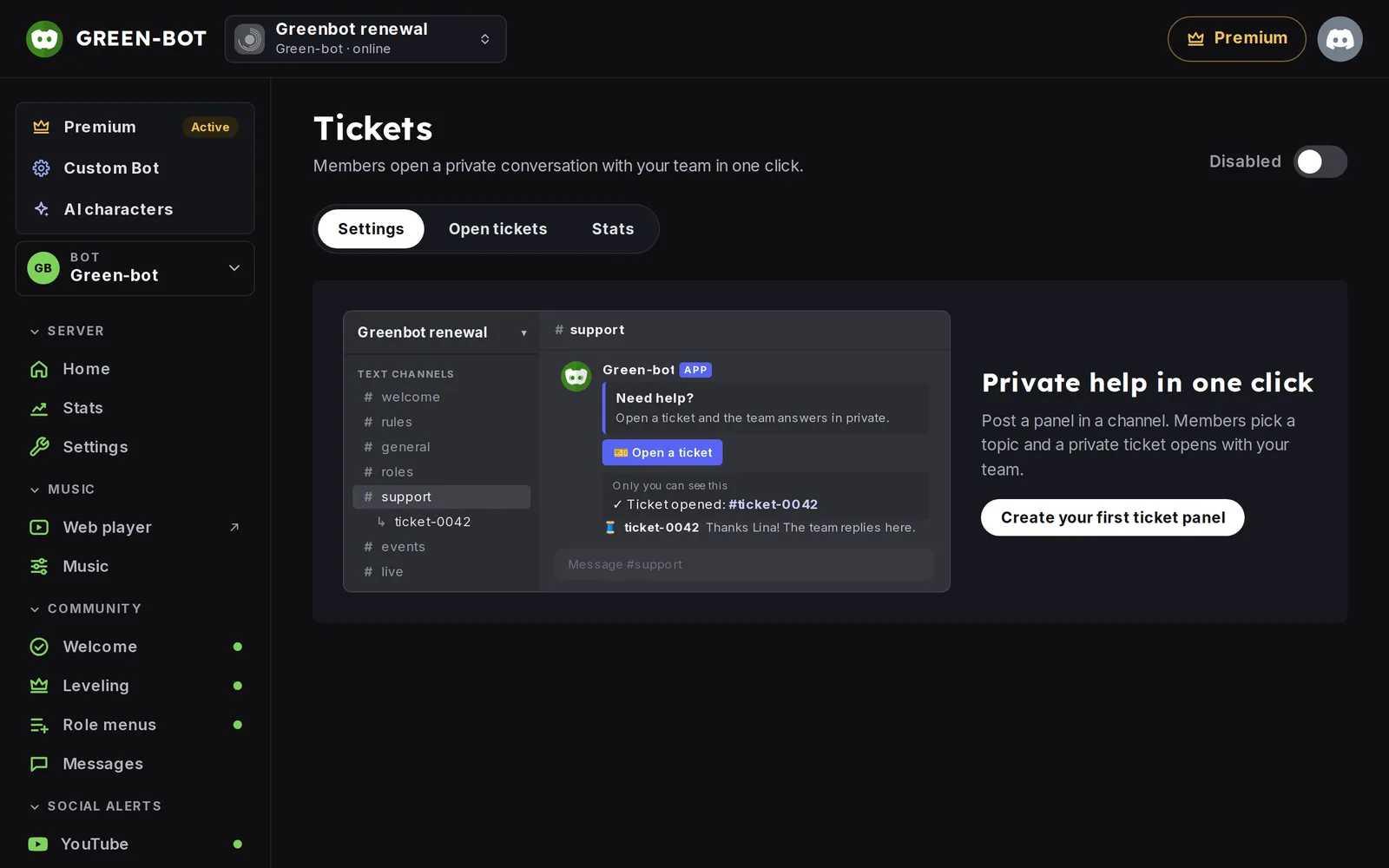 Tickets page
- Create a panel. A window opens with these steps: Types, Where, Staff, Form, Limits, Welcome and Options.
- In Types, add one type for each button.
- In Where, pick the Category for the tickets and Post the panel in.
- In Staff, pick the roles that see and answer each type.
- Post the panel.
The right side of the window shows exactly what is sent.
What a ticket looks like
Each ticket is a private channel in the category you chose. Your staff and the member talk there. Use /ticket inside a ticket to manage it.
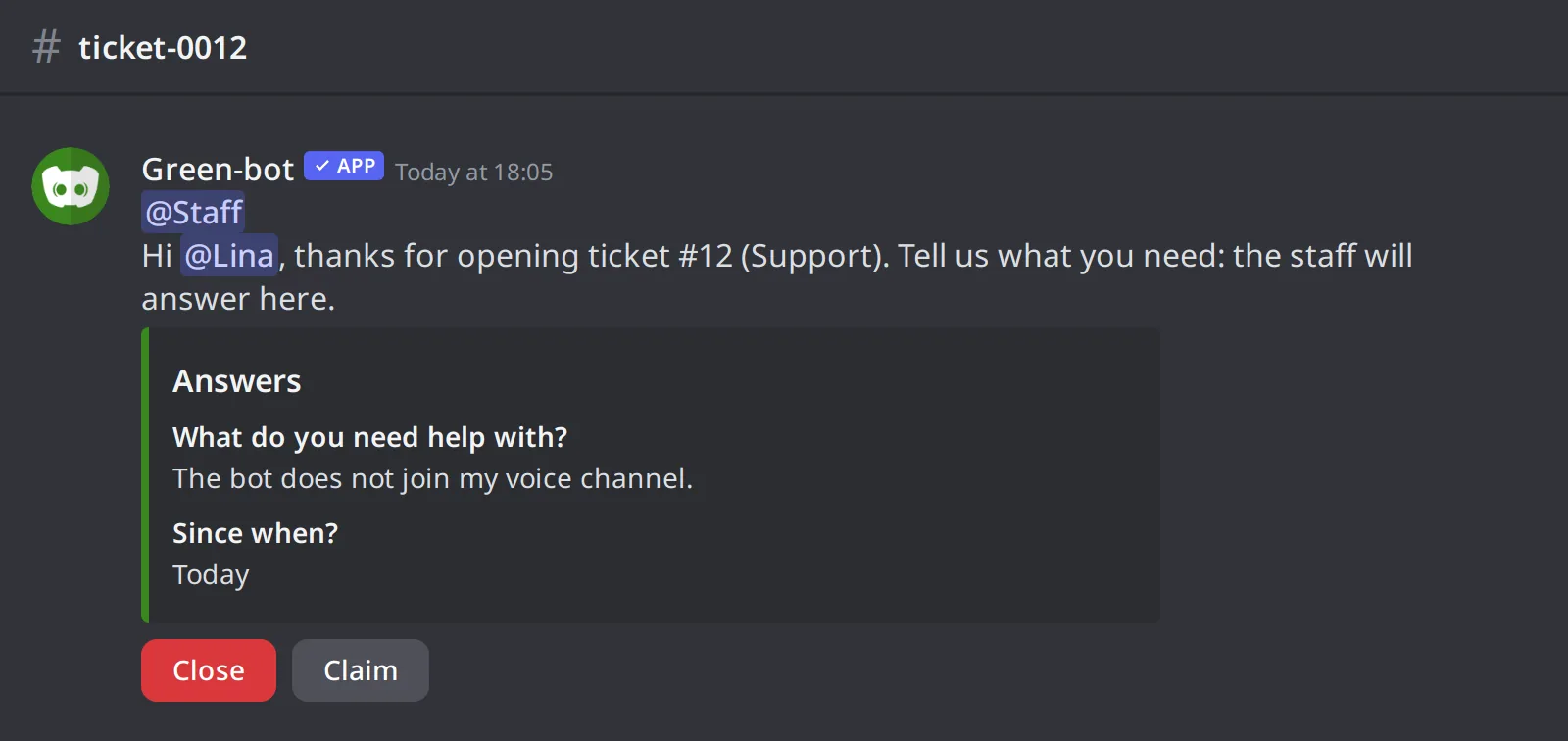 An open ticket
Read a ticket and its transcript
Open the Open tickets tab. Click Open on a ticket to read the conversation, as Discord shows it. You can Download transcript (HTML), and Reopen a locked ticket.
The member who opened the ticket also gets a link to the transcript. Only server managers read the answers and the transcript in the dashboard.
For forms, hours, reminders and stats, see Tickets in depth. If a ticket does not open, see A ticket does not open.
Still stuck? Ask on the support server.